


Reformat Expressions
This is a collection of different nodes and setups that include formatting expressions, and I found them useful over the years. I usually keep on my Toolset, for easy access. So let's start measuring!
ScanlineRender with percentage overscan
Overscan is commonly set as a percentage in most 3D packages. However, Nuke's most common render node choose to set the overscan value in pixels for some reasons.
With a little expression and a user knob we can fix it! 🤓
The expression is basically, checks if the "bg" input is active first.
If it's active it's using the format of that input.
If it's not active it's using the root resolution.

# w
[if {[exists input0]} {return (([lindex [value input0.format] 0]/100)*(100+[value this.percentage]))-[lindex [value input0.format] 0]} {return (([lindex [value format] 0]/100)*(100+[value this.percentage]))-[lindex [value format] 0]}]
# h
[if {[exists input0]} {return (([lindex [value input0.format] 1]/100)*(100+[value this.percentage]))-[lindex [value input0.format] 1]} {return (([lindex [value format] 1]/100)*(100+[value this.percentage]))-[lindex [value format] 1]}]
I added a user knob slider, named "percentage".

You can copy the Scanline with a Reformat from here.

Format increase / decrease
Let's start with the problem at hand!
There are certain nodes that are not operating in the bounding box area, unfortunately.
One of these nodes is the Bokeh node that we might need to use to add some defocus to the undistorted CG image that usually should have a bounding box. ( The size of the bounding box depends on various things, but usually different studios develop their own workflows so not getting into that here. )
As we ideally want to add defocus before applying the lens distortion it means that we might not add defocus to an area that later appears after being distorted around the edges.
In this quick example you can see the stretched edges when defocus applied without scale adjustment on the left side.
( Transform under them is on 0.9 scale the see the bbox area )

The solution is to scale up the image without resizing the image before defocus, then changing the size back to the original resolution while keeping the bounding box.
The first Reformat is currently on 1.2 but it can be adjusted based on needs.
The "resize type" need to be on "none" and the "preserve bounding box" turned on.
In the reverse Reformat the value we used to scale up needs to be divided.
1 / <scale up> which in this case is 1 / 1.2.

You can copy this setup from here.
Handy Crop nodes
There are simple tricks that can often be helpful in different situations.
Therefore, I like to keep these two simple expression enhanced Crop nodes on my Toolset.
They are dynamic and do exactly what their name suggests.

GM_Crop
Sometimes, we get delivery masking requests in percentage.
That was the main inspiration for this Crop node.

It adjusts to the input values and allows you to switch between pixel or percentage-based cropping.
You can also choose if want to Sync them or not.
There are essentially two Crops in this Group.

You can copy GM_Crop from here.
GM_CopyReformat
Another simple thing that I found useful was copying reformat to make sure different assets are in a same format.

On the "from" input there's a Reformat node with an expression that first, that does a similar thing as the snippet in the Scanline render in the first section.
First it checks if the input is active.
If it is it uses the width/height values of the input.
If it's not it's using the root format.
# w
[if {[exists input1]} {return [value input1.width]} {return [value root.width]}]
# h
[if {[exists input1]} {return [value input1.height]} {return [value root.height]}]
On the interface, there are most of the usual Reformat options.
However, I locked the output with a READ_ONLY flag as it shouldn't be adjusted but depends on the "from" input only.
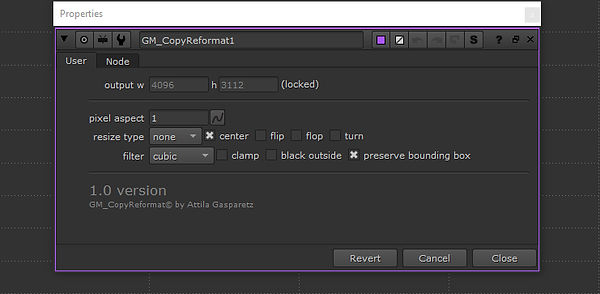
You can copy GM_CopyReformat from here.
Hope you will find it useful!